What do you need for a Rumpelstiltskin AI video?
- A character image you own or have permission to use.
- Access to an image-to-video tool. The example below follows Runway’s official Gen-4.5 instructions; model access depends on your account.
- An editor for trimming, audio, and final export.
This website provides the guide and an original style preview. Uploads and video generation are not available here. If you are looking for the source of the viral clip instead, start with the Rumpelstiltskin meme origin and movie claim.
01. Prepare a full-body character still.
A portrait alone leaves the costume, body, and room undefined. First make or choose a complete scene: one character, visible feet, and enough floor space for a short entrance. For a personal version, use your own photo or a consenting person’s image when designing the character.
Our suggested visual brief is a small fairy-tale character in a deep green coat, warm side lighting, timber walls, and a clear floor. Change the setting and costume to make it your own. The preview’s lighting and composition notes show how those choices work together.
Composition check: can you see both feet, the whole coat, and some space in the direction of travel? Decide your framing before animating. A tight face crop suits an expression study more than a tiptoe dance.
Start with the candlelit barn.
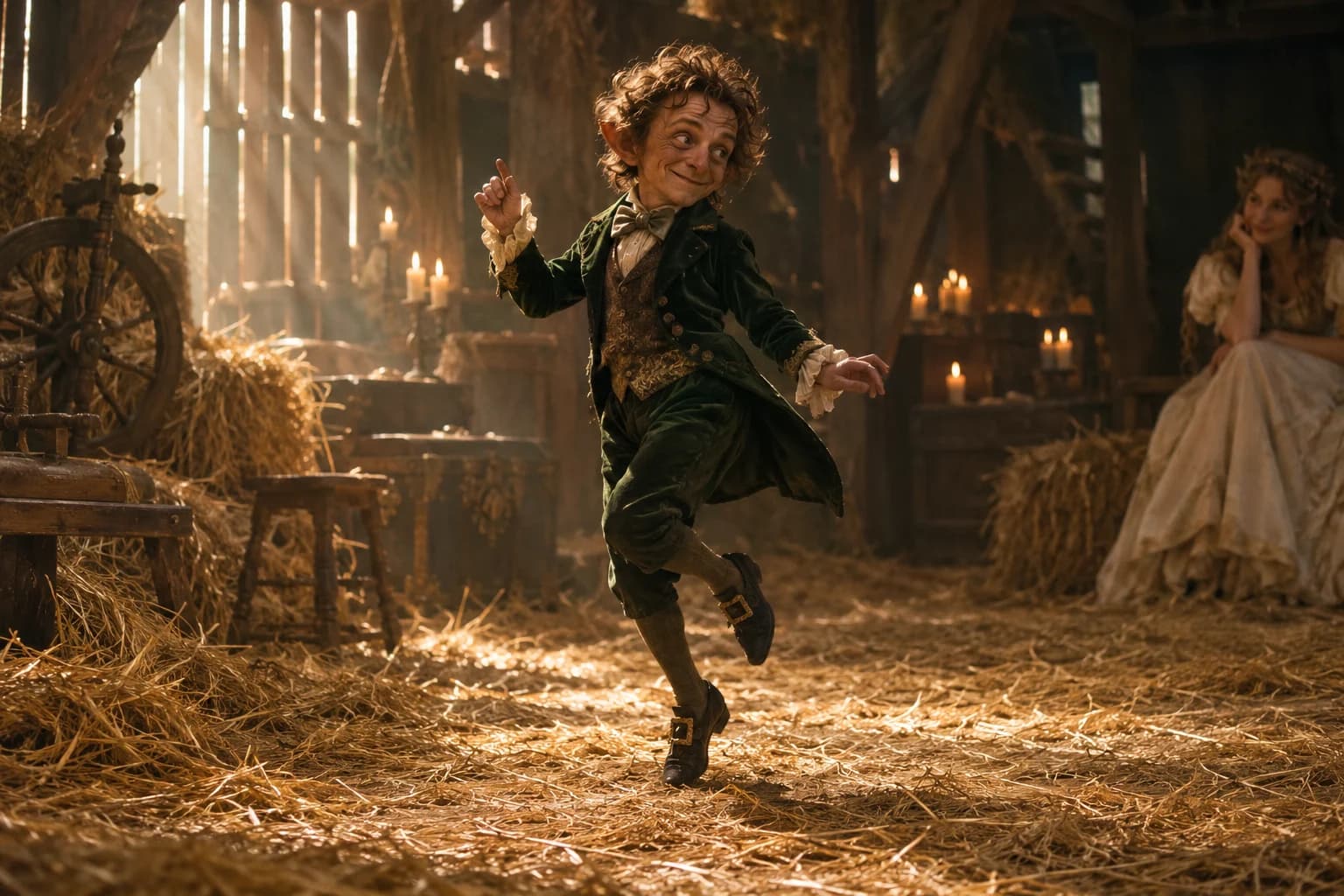
Both boots are inside the frame, but the character already has one leg raised. For this image, start with steps in place rather than a long walk across the room. Keep the seated background figure still so the first attempt tests one subject’s motion.
Suggested starting settings: Gen-4.5, a 4:3 crop, five seconds, and 24fps. In the crop preview, keep the entire character and the floor below the lowest boot visible; do not stretch the 3:2 source image to fit. Establish a readable movement before trying a vertical version.
02. Set up image-to-video generation.
The following controls are described in Runway’s Gen-4.5 documentation, reviewed October 8, 2026:
- In Runway’s Tool Mode, choose Video and select Gen-4.5. You can also find the model through Apps View.
- Upload the starting image in the prompt window. For image-to-video, focus your text on the movement you want.
- Choose the aspect ratio and crop, duration, and frame rate. The documented duration range is 2–10 seconds.
- Select Generate, review the result, and use the download control to take it into your editor.
For a first attempt, our suggestion is a short clip with a steady camera. Use a vertical composition if you intend to make a portrait-format post. Check the tool’s current account requirements and controls before generating.
03. Describe one readable tiptoe action.
Try this Rumpelstiltskin AI video prompt with an image that already establishes the character and setting. Adapt the action to your scene.
The small foreground character takes two slow, exaggerated tiptoe steps in place. The camera stays still in a full-body shot. The seated figure and barn remain still.
Keep the first attempt simple enough to diagnose. If you change the action, camera, lighting, and costume at the same time, it becomes harder to tell which change helped. Save your starting image and prompt so you can compare attempts. If the two steps tangle, make a second attempt asking for one step in place, keeping the image, crop, duration, and frame rate the same. Compare both outputs rather than assuming the shorter prompt is better.
04. Check the result before adding music.
Watch once at normal speed, then inspect the steps and the face. The suggestions below are adjustments to try; they are not measured fixes or a guarantee of a particular result.
| If you notice… | Try next… |
|---|---|
| Feet leaving the frame | Reframe the starting image with more floor space and fewer steps. |
| A changing face or costume | Reduce the turn or other complex motion, then compare another result. |
| Sliding or tangled footwork | Ask for a shorter action. Review individual steps before extending the sequence. |
| A camera move hiding the dance | Request a stationary camera and a full-body composition. |
For a useful comparison, save the input, exact prompt, model, settings, and unedited output for each attempt. Review the first, middle, and final frames as well as playback. Record whether both boots stay in view, the face and coat remain recognizable, the steps read clearly, and the background stays stable.
05. Add audio, trim, and export.
Bring the downloaded video into your editor, choose the strongest short section, and align the first visible step with a beat. Add audio you have permission to use, or a track available for your intended use through the posting platform. The meme’s commonly used song is a reference, not a requirement.
Check the final crop, listen to the complete export, and make sure captions do not cover the feet. Label your version as AI-generated where appropriate and follow the platform’s current disclosure rules. Do not describe it as recovered movie footage.
Rumpelstiltskin AI video questions
Can I make it for free?
This guide does not promise free generation. Tool access and allowances vary; check the provider before starting. This site does not sell generation credits.
Will this create the exact viral dance?
The prompt describes a similar type of action. It does not transfer the original choreography or guarantee an identical result. We have not verified the original model or prompt.
Do I need a face-swap tool?
This workflow starts with a completed character image and animates it. A face swap is not one of its steps. If likeness matters, compare the starting image and each video result carefully.
Tool reference: Runway, Creating with Gen-4.5. Learn more about our editorial approach.